
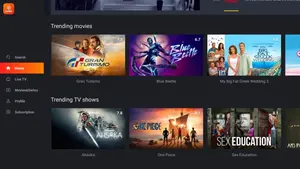
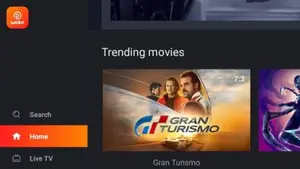
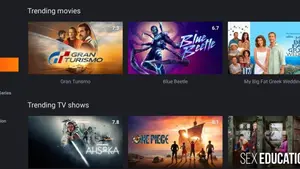
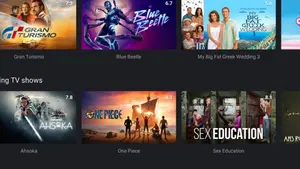
What Is Waka TV?
Waka TV is a free streaming app for Android that puts movies, TV shows, live TV channels and live sports in one place. Open the app, pick a category, and start watching without creating an account or signing in first. That simple front door is the whole idea: less setup, more watching.
On a phone the app behaves like a pocket television. The home screen groups titles by type, so films sit apart from series, series sit apart from live channels, and sports sit where fans can find them before kickoff. Search covers the whole catalogue at once, which matters when you remember a title but not where it lives.
Waka TV is built for everyday viewing rather than for collectors. It suits the viewer who wants tonight's film in two minutes, the fan who wants a live match on a tablet, and the family that wants a kids section that does not need explaining. If you like browsing first and deciding fast, the layout will feel familiar within a single session.
Why People Download Waka TV
People download Waka TV for one practical reason: one app covers several kinds of watching. A film night, a series catch up, a news channel at breakfast and a live match in the evening can all live in the same place, so there is no need to juggle four apps and four sign ins.
The second reason is control over quality. Streams can be set to match the connection in front of you, which keeps a slow mobile connection watchable and lets a fast home connection show the sharper picture. Viewers on limited data can pick a lighter stream, and viewers on Wi-Fi can pick the best picture the connection supports.
The third reason is the lack of friction at the start. There is no account form standing between opening the app and pressing play, and the interface uses plain category names instead of jargon. New viewers usually find their first title without a guide, and returning viewers go straight to the section they used last time.
Waka TV keeps that promise by putting the whole catalogue behind one search box and one set of quality controls.
Main Features
The features below are the ones viewers actually use every week, not a list of promises. Each one answers a real moment: finding something, watching it well, or picking it up again later.
- Movies and TV shows in one catalogue. Films and series are grouped by genre and by what is trending, so a browse session ends with a choice instead of a scroll that never ends.
- Live TV channels. News, entertainment, music and general channels stream live inside the app, which makes it useful as a second television when the main set is busy.
- Live sports coverage. Matches and sports events get their own section, so fans can check what is on without digging through film listings first.
- Quality choices per stream. Pick a lower quality on mobile data and a higher quality on Wi-Fi. The choice sits with the viewer, not with the app alone.
- Subtitles in several languages. Subtitle support helps viewers follow dialogue in films and shows from other countries, and it helps in noisy rooms too.
- Offline downloads where offered. Titles that support downloading can be saved on Wi-Fi and watched later without a connection, which suits travel and commutes.
- Kids content in its own space. Cartoons and learning shows sit in a separate section, so younger viewers can browse without wandering into adult listings.
- No account needed to start. Open the app and browse at once. Viewers who prefer not to hand over an email address can still watch.
Content Categories
Movies form the largest shelf, with recent releases sitting next to older favourites and genre rows for action, drama, comedy, romance, thriller and family viewing. The genre rows do the heavy lifting for undecided viewers: pick a mood, then pick a title inside it.
TV shows get the same treatment, with series grouped so episodes stay together and a new viewer can tell at a glance how much of a show exists. Daily soaps and long running series sit alongside shorter limited series, which keeps both kinds of viewer served.
Live TV is organised by channel type rather than by country alone. News channels, music channels, entertainment channels and general channels each get a clear label, so channel surfing feels like television instead of a file list.
Sports, documentaries and kids shows round out the catalogue. Sports fans get fixtures and live events, documentary viewers get nature, crime, space and history titles, and families get cartoons and learning shows in a section that is easy to fence off at bedtime.
Waka TV organises those shelves so a viewer can move from a film to a live channel without learning a new layout each time.
Device Compatibility
Waka TV is made for Android phones first, and that is where it feels most at home. Phones of modest power run it well because the app is lightweight, and the layout is built for thumbs: big rows, a search bar at the top, and a player that fills the screen in landscape.
Tablets get the same app with more room to breathe. Browsing on a tablet feels closer to a television guide, and the larger screen suits long films and live matches that deserve more than a phone display.
Android TV and TV boxes are a natural second home for the app. On a television the category rows read like a TV guide, and a remote can move through them without a touchscreen. Viewers who install it on a TV box should check that their remote can reach the search box and the quality menu, since those two controls matter most.
On a PC, Waka TV runs inside an Android emulator. That route works, but it adds a layer between the viewer and the app, so a phone, tablet or TV box gives a smoother first experience. Whatever the device, a stable connection matters more than a powerful processor for smooth playback.
Technical Details
Waka TV is an Android application in the entertainment category, distributed as an APK file for sideloading. It is a free app with no account requirement, and it is designed to run on a wide range of Android versions rather than only on the newest phones.
The app is lightweight compared with many streaming apps, which is why it installs and opens quickly even on older devices. Storage needs stay modest for the app itself, though downloaded titles for offline viewing take extra space, so viewers who download a lot should keep some free storage on the device.
Playback quality adapts to the connection. Lower qualities keep mobile data use down and keep playback going on weak signals, while higher qualities reward a strong Wi-Fi connection with a sharper picture. Subtitle tracks and audio language options depend on the title being played, since not every title carries every option.
Permissions stay close to what a streaming app needs: network access for streams, storage access for offline downloads, and display access for playback. Viewers should still check the permission list during installation and refuse anything that does not match streaming, downloading or playback.
Why Waka TV Is Useful
For film nights, Waka TV removes the usual ten minutes of app switching. One search covers films and series together, and the genre rows give an undecided group a shortlist instead of an argument.
For sports fans, the live section is the point. Checking what is on, opening a match, and switching quality when the connection dips are all quick actions, which matters when a game is already underway.
For families, the kids section plus the no account start means a child can be handed a tablet with a bounded set of shows, while adults keep the main catalogue for later. Offline downloads help here too: save a few episodes on Wi-Fi before a car trip and the back seat stays quiet.
For travellers and commuters, downloads and quality choices are the two features that earn their keep. A saved title needs no signal at all, and a low quality stream stretches a small data allowance across a whole journey.
Pros and Cons
An honest list beats a glowing one. These are the trade offs viewers report most often, and they match what this site found while testing the app.
- Pro: one app for films, series, live TV and sports. Fewer apps to maintain and fewer sign ins to remember.
- Pro: free to use with no account wall. Browsing and playback start at once, without an email address or a subscription form.
- Pro: quality choices that respect slow connections. A stream can be turned down instead of stopping altogether.
- Pro: lightweight and quick to open. The app suits older phones and smaller storage budgets.
- Con: no verified official store listing. This site could not verify an official Google Play listing for this app, and the download file is linked on the download page.
- Con: playback can buffer on weak connections. Live events in particular suffer when the connection dips, and a lower quality setting is the usual fix.
- Con: no official customer support channel was found. Help comes from guides like the ones on this site rather than from a support desk.
- Con: some content may be region restricted. A title that plays in one place may not play in another, which is normal for streaming catalogues.
Troubleshooting and Common Problems
If the app will not install, the usual cause is the install from unknown sources setting. Android blocks APK installs by default, so the setting for the browser or file manager doing the install must allow it, and the file must be complete. A half downloaded file fails with a parsing error, so download again on a stable connection before trying other fixes.
If playback buffers, drop the quality one step and test again before blaming the app. Live streams need a steadier connection than stored films, so a match that stutters on mobile data may play cleanly on Wi-Fi. Closing other apps that use the connection, and moving closer to the router, both help more than reinstalling.
If the app opens but a title will not play, try a different title in the same category. When one title fails and others play, the problem sits with that title's stream rather than with the app. When nothing plays, clear the app cache, check the connection, and restart the device once before reinstalling.
If subtitles do not appear, check the subtitle menu inside the player rather than the device settings. Not every title carries subtitles, and the available languages change from title to title. When a subtitle track exists but shows at the wrong time, switching it off and on again usually resyncs it.
Waka TV rarely needs more than those steps, and most failures end once the connection or the quality setting is fixed.
Alternatives to Waka TV
Viewers who want a store installed option should look at the streaming apps available in their device's official store. Those apps trade the sideloading step for a store listing, automatic updates and a support channel, and they suit viewers who prefer that safety net.
Viewers who mainly watch live television may prefer a dedicated live TV app, where channels are the whole product rather than one section among many. The guide, channel list and programme information tend to be deeper in a live TV first app.
Viewers who mainly watch films may prefer a film first catalogue app, where discovery tools like trending rows, ratings and trailers get more room. Waka TV covers films well, but a film first app spends all of its design on that one job.
For most viewers the honest answer is to keep Waka TV for its breadth and add a store app for anything it does not cover. Breadth and depth rarely live in the same app, and two apps that each do their job beat one app stretched thin.
How to Download and Install Waka TV
Start on this site's download page, which is linked from the download button at the top of this page. The download page runs a short countdown and then shows the download control.
Once the file is on the device, open it from the notification or from the downloads folder. Android will ask permission to install from the app that is opening the file. Allow it for that app only, then confirm the install and wait for it to finish. Refuse any extra permission that does not relate to installing the app.
After installation, open Waka TV from the app drawer and browse the home rows before changing any setting. Pick one short title first and test playback, subtitles and quality on that title. When the first title plays well, the app is ready for a full film night, and the quality setting that worked can be kept for later sessions.
Safety and Verification
Every guide on this site is checked on real Android phones before it is published, and the steps above were tested the same way. That testing covers installation, first playback, quality switching and subtitle use, because those are the moments where a bad guide wastes a viewer's evening.
Two honest limits apply to this app. First, no official store listing could be verified, so this site cannot point to a store page as proof of the developer's identity. Second, the download file is linked on the download page, and no other site is presented as a source.
To stay safe, keep the device's security settings as they were after installation, keep the app updated from this site, and do not grant permissions that have nothing to do with watching. A streaming app needs network and storage access; it does not need contacts, messages or call access.